
THE GAME, AT A GLANCE
About Minecraft Classic
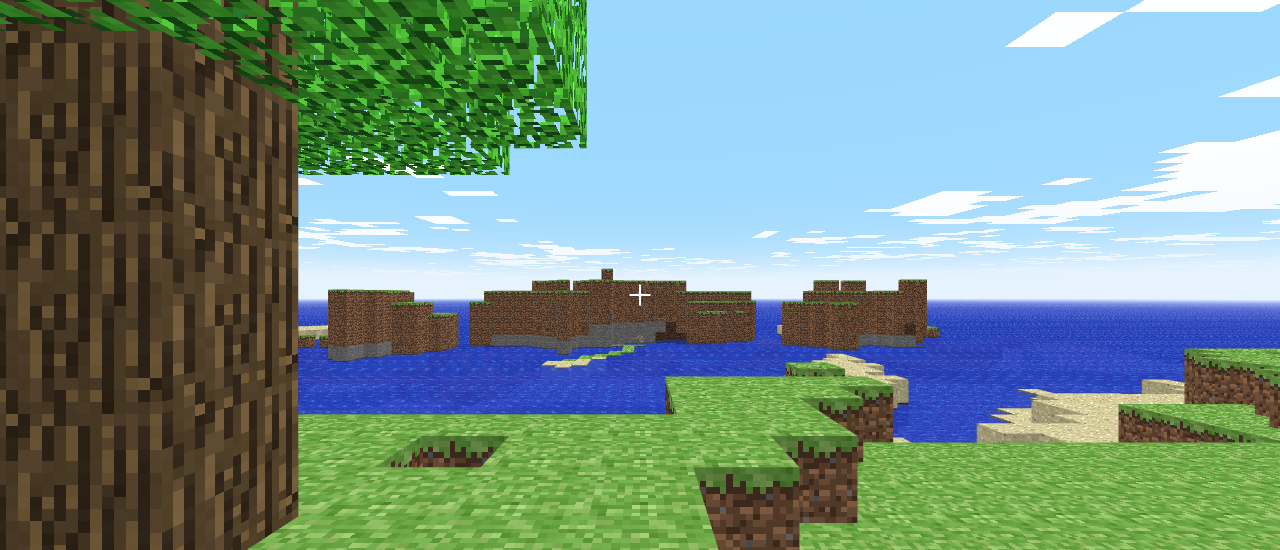
Minecraft Classic recreates the early 2009 block-building game in a browser. Its 32-block palette keeps the focus on shaping terrain and building your own structures. This is the Classic creative experience, rather than the current Java or Bedrock release. The original game runs on Minecraft's official domain inside the Miniplay player.
Your goal: Create your own structures and reshape a block world using the Classic selection of 32 blocks.
How to play Minecraft Classic
- Start a world on a computer with a keyboard, then click inside the game to control it.
- Use WASD to walk, move the mouse to look around and press Space to jump.
- Press B to open the block selection and choose a building material. Number keys 1-9 select materials from the quick selection.
- Left-click to place or mine blocks. Right-click switches which of these two actions the left mouse button performs.
- Press Enter to save a location. Press R to return to that saved location while exploring or building.
Controls: Move with WASD, look with the mouse and jump with Space. Left-click to place or mine a block; right-click switches between placing and mining. Press B to open the block selection, or use 1-9 to select a material. T opens chat and F changes the fog. Enter saves your location and R returns to it. A keyboard is required.
Tips for Minecraft Classic
- Check whether you are placing or mining before clicking on a finished part of your build; the right mouse button changes modes.
- Save a convenient building location with Enter before walking away, so R can bring you back.
- Use B to compare the available block colors before extending a wall or floor.